
Use this guide from your first sign-in to the final backup. Screenshots show a real isolated test application with demonstration content; labels and device menus can vary by language and browser. No customer gallery or real payment was used to capture them.
1. Understand the organizer and guest experience
Guest Moments gives one celebration a shared place for photographs, videos and video wishes. The organizer has an account and a workspace for event settings. Guests use an event link or QR code to reach the guest page. They do not need to create a Guest Moments account to contribute to an event that permits guest uploads.
A gallery link is an invitation to the access settings you choose, not a promise that everything is private. Before you begin, decide who should be able to view contributions, whether uploads should appear immediately, and whether guests may download them. Keep a separate copy of important files: an event gallery is not a permanent backup.
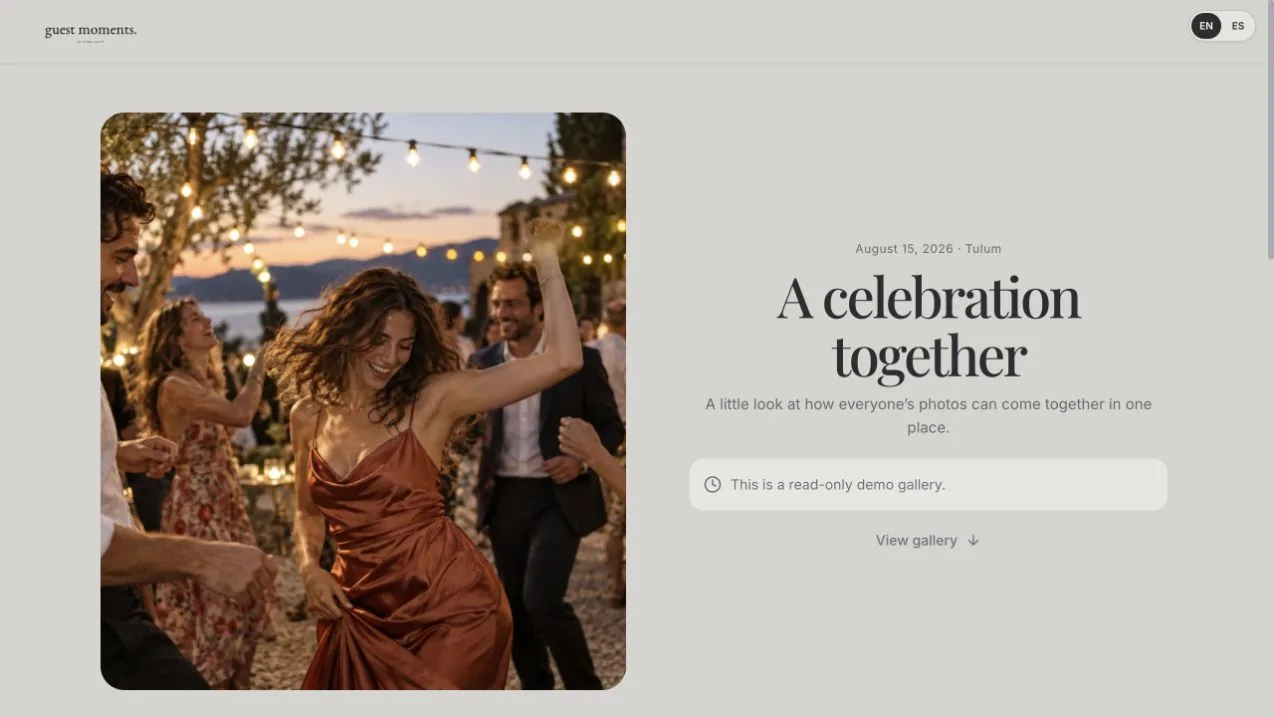
If you only want to see the visitor experience, open the sample gallery. It is a demonstration, so use your own test event to verify a real upload. This guide describes the organizer and guest controls in the current application; device camera and sharing menus can vary.
2. Register or sign in with the right account
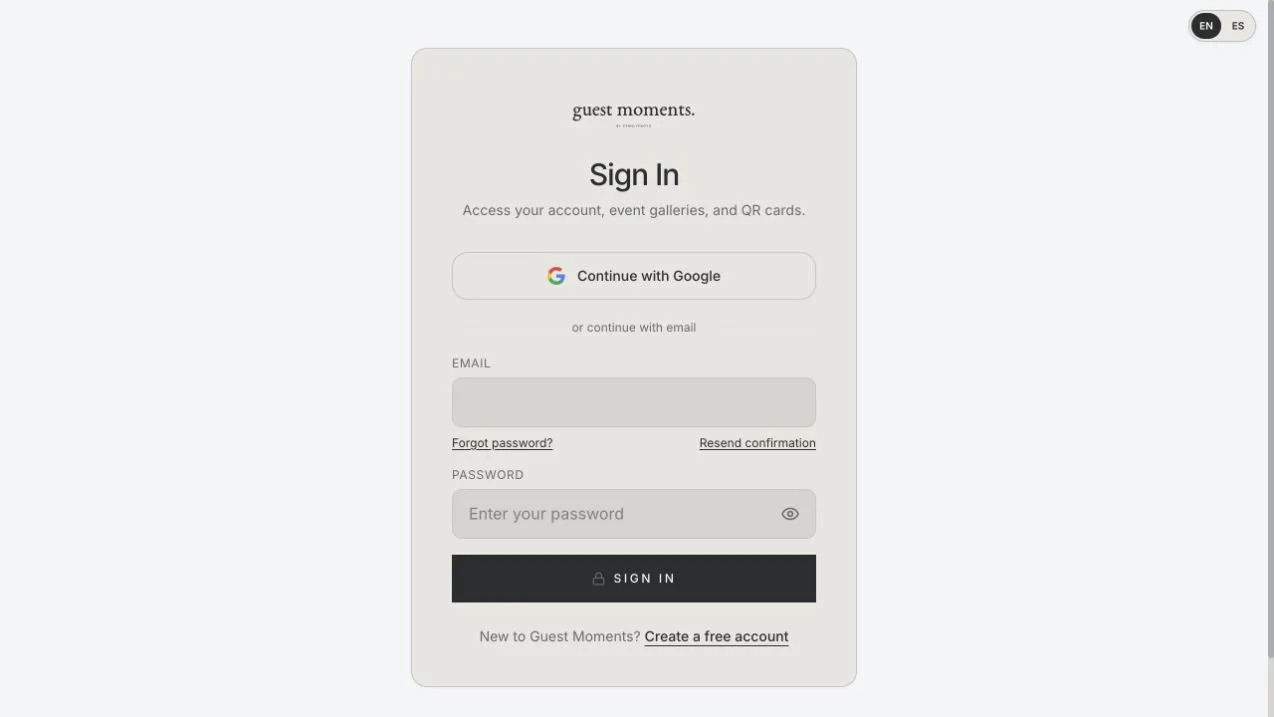
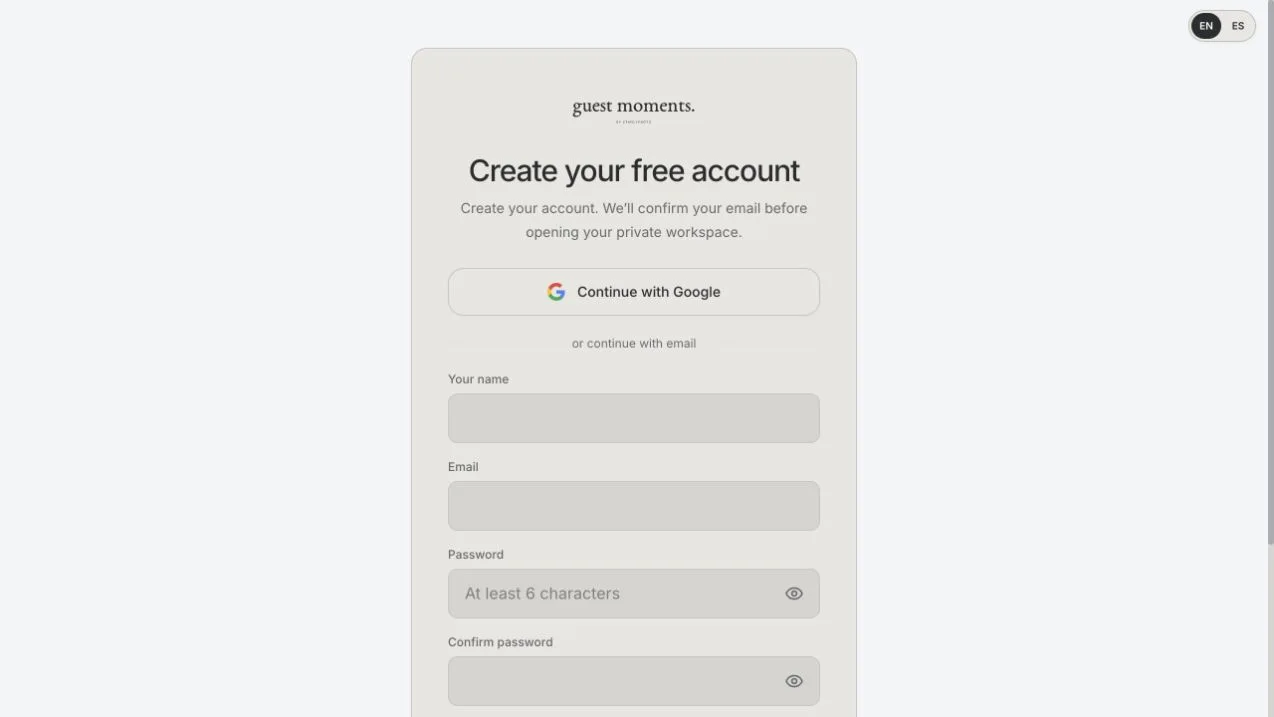
Open Create Your Event from the public site, or use Sign In if you already have an account. Choose English or Spanish before registration so the interface and account emails follow your preference. Enter your own email and a password that meets the requirements displayed on the form. The password visibility control helps you check what you typed.
Email-and-password registration first sends a confirmation message. Open its confirmation link; the welcome email follows successful verification. A new account created with a verified Google identity receives the welcome message without an extra email-verification step. If your email already belongs to an existing password account, follow the account-linking instructions instead of repeatedly creating another account.
If a message is missing, check spam and the spelling of the address. Use the available confirmation-resend or password-recovery flow rather than sharing a password with support. Do not bookmark an OAuth callback address: start a fresh sign-in from the login page.
3. Find your event workspace
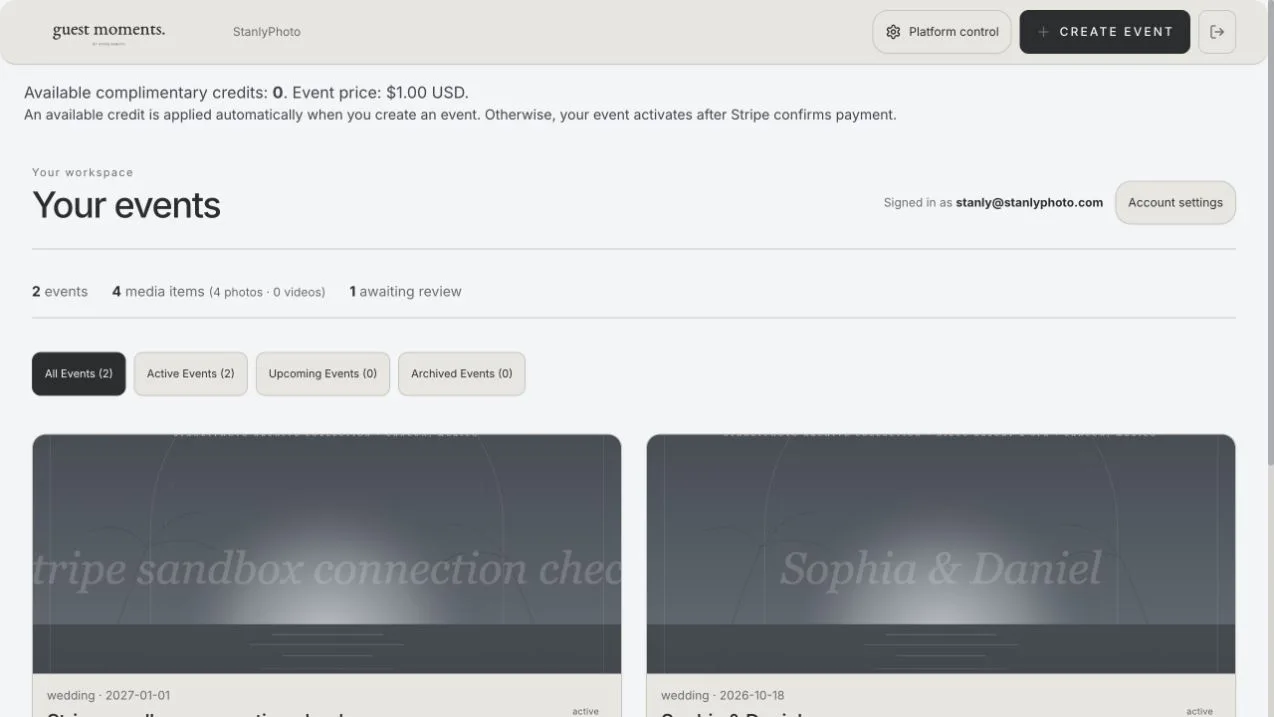
After signing in, your workspace lists the events associated with your account. Event cards provide access to the guest gallery, management tools and QR & Print Studio. Copy Link copies the guest-facing address; it does not invite someone into your account. Download All is an archive action, not a sharing control.
Check the account name before creating an event, especially on a shared computer. A new customer should not expect to see another person’s event merely because they know its name. If you have more than one event, use the event title and date to choose the correct card. Available complimentary credits appear in the event-access area when they have been granted to your account.
Use Create Event to start a new celebration. You can return to the workspace to manage it later; keep organizer credentials separate from the guest link.
4. Create the event and check its date
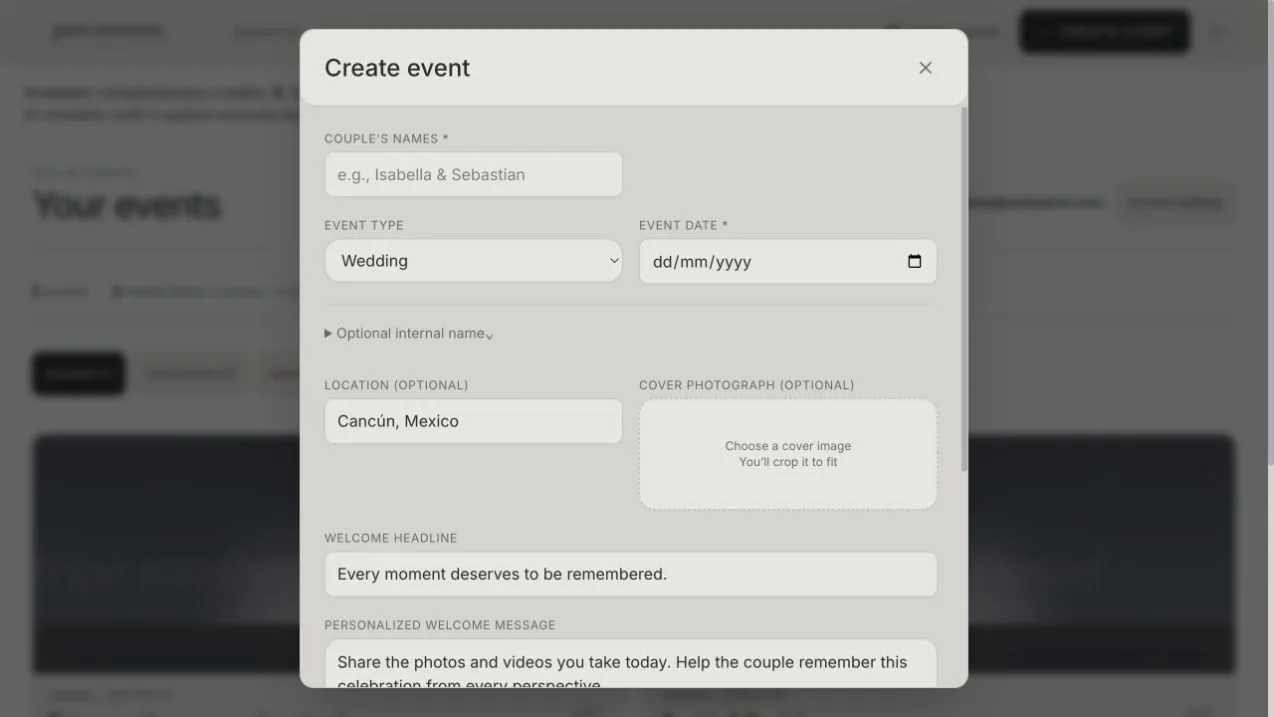
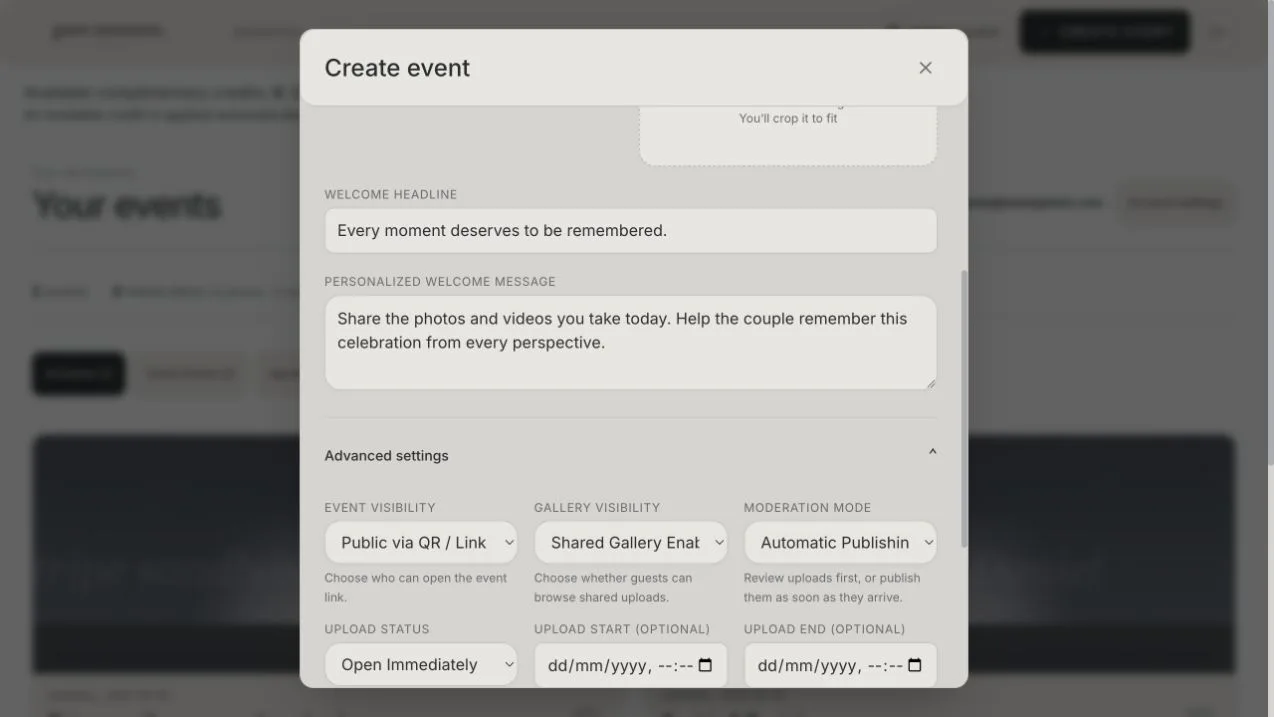
The creation form asks for the couple’s names or event title and the event date. Choose the event type that best fits the gathering. Location, cover photograph, welcome headline and welcome message help guests recognize the right celebration. An internal name can distinguish similar events in your own workspace.
Choose the real event date carefully: the standard media-retention schedule is based on that date. Do not use today’s date just to get through the form if the celebration is later. If you add a cover, follow the crop interface and check that faces and essential details remain visible on a phone.
Before submitting, read the event-access summary. The event may need payment before guest access is activated, or an available complimentary credit may apply. Creating an event record does not itself prove that a payment has succeeded. Keep the page open while the request completes and avoid submitting the same event repeatedly.
5. Complete payment or use an assigned credit
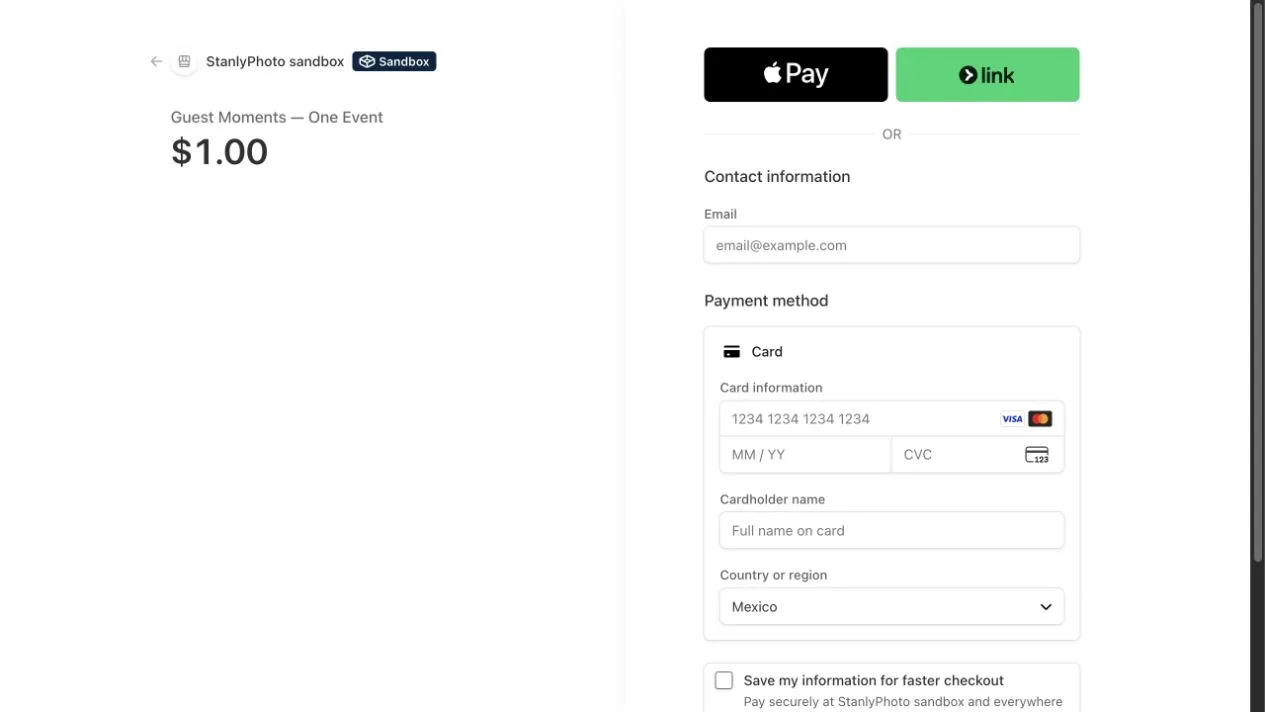
The current event price appears in the application before checkout. Treat that displayed price as the source of truth; launch promotions can change. Event access uses a one-time payment rather than a recurring subscription. Stripe hosts the payment page, and the application activates paid access after receiving confirmed successful payment—not simply because the browser returns from checkout.
If you cancel checkout, the event can remain awaiting payment. If the bank requires an additional step or confirmation is delayed, return to your workspace and check the status before trying another purchase. Do not assume a second click is needed just because activation is not immediate.
An available complimentary credit is applied through the event-creation flow without entering payment details. Credits are assigned by the platform owner and may expire before use. They are not Stripe payments and should not appear as money you paid. If checkout or activation seems wrong, contact support with the event name; never send card details or passwords.
6. Configure viewing, uploads and moderation separately
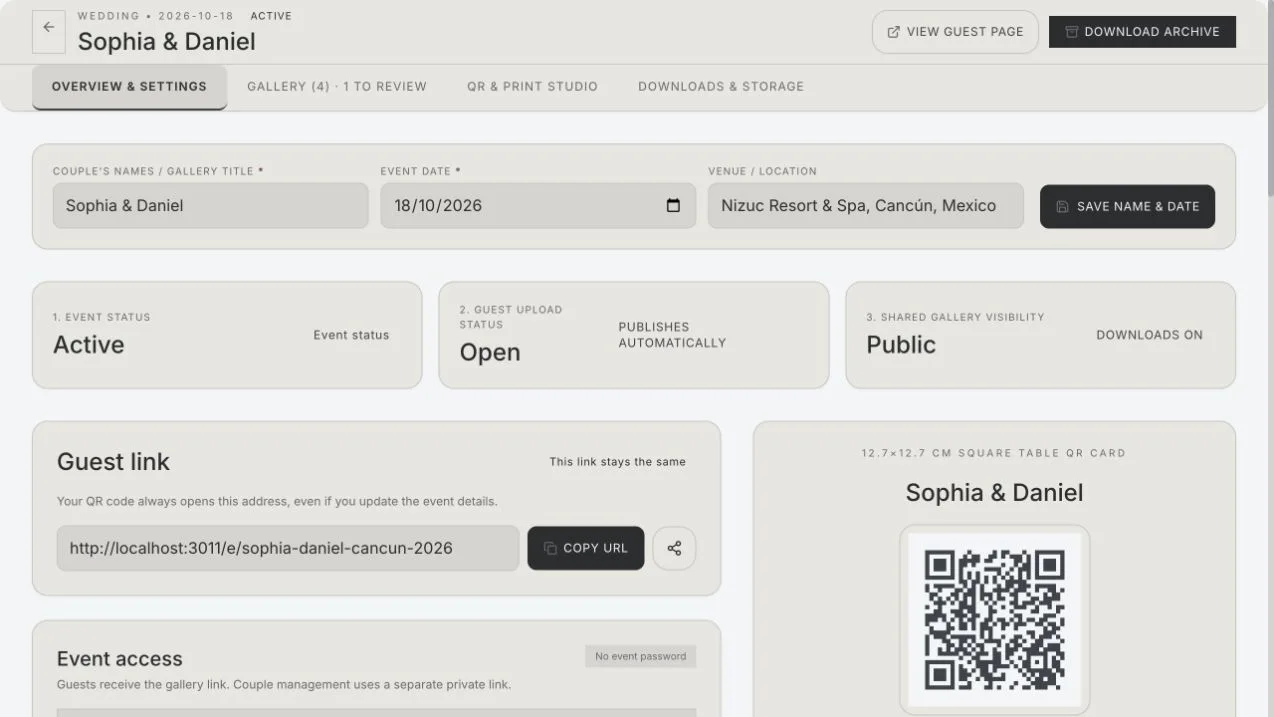
Open Manage, then Overview & Settings. Event visibility controls who can open the event; shared-gallery visibility controls whether guests browse contributions. Upload status controls whether new contributions are accepted. These choices solve different problems: an upload-only event is not the same as a browsable public gallery.
Review automatic publishing versus manual approval, guest downloads, video uploads, and any scheduled upload window. With manual approval, a successful upload may not be visible to other guests until the organizer approves it. Explain that expectation rather than asking guests to upload repeatedly.
Save changes using the section’s save control, then test the guest-facing link in a separate browser that is not signed in as the organizer. A signed-in owner view can hide access problems that a guest will encounter. For the meaning of link access, read private or public event galleries.
7. Choose a QR card in QR & Print Studio
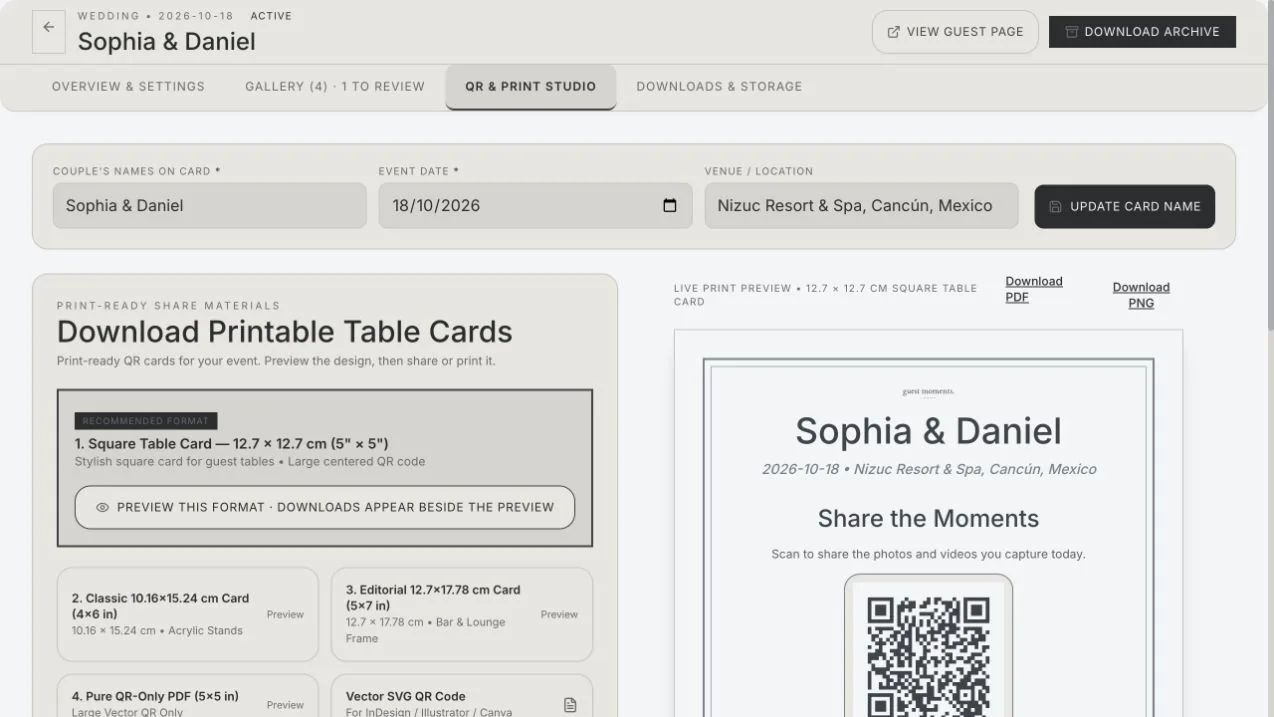
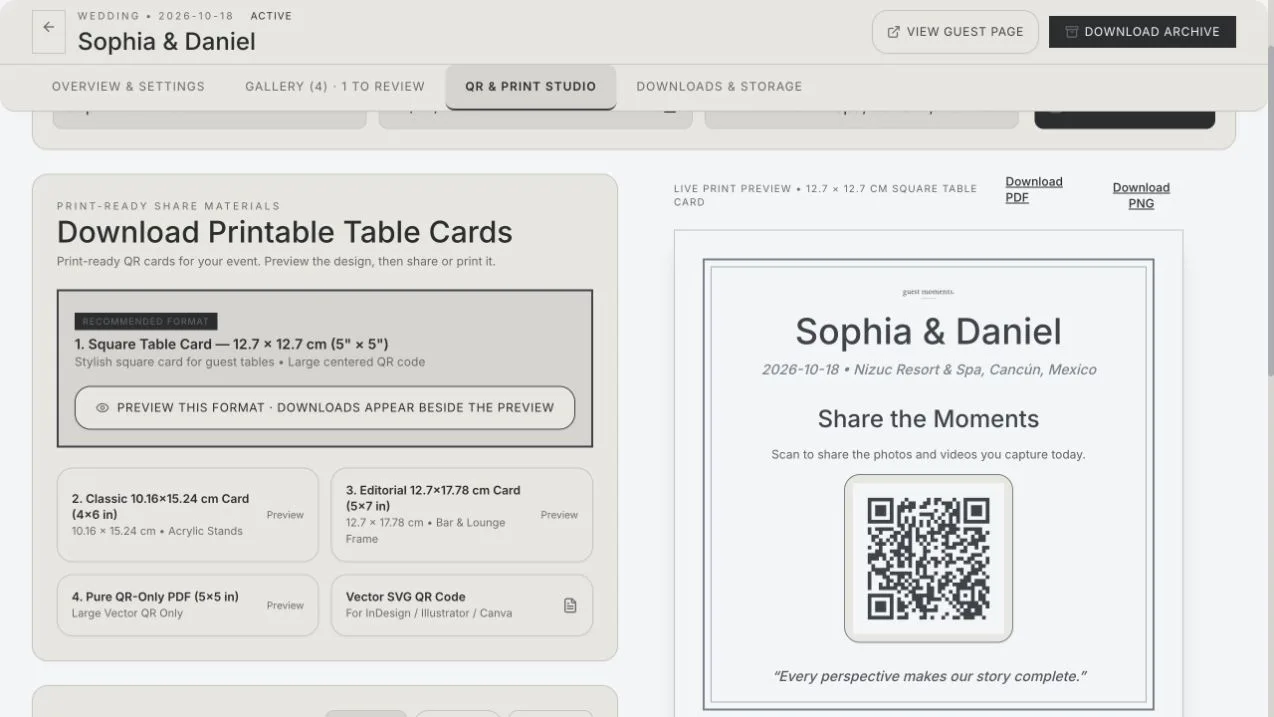
Open QR & Print from the event card, or select QR & Print Studio inside management. Select a format to preview it before downloading. The interface offers designed cards and a pure QR-only option; use the format that fits your frame or printed material rather than stretching one export to another shape.
Edit the card headline, instructions and colors. A customer logo is optional. The small Guest Moments mark belongs to designed cards; pure QR output avoids that branding. Check the live preview after each meaningful change, including a logo upload. Keep instructions brief so the code remains easy to see.
A code that looks attractive but has poor contrast can be difficult to scan. Prefer a light background and dark code, and do not cover the code with decorative elements. Save the studio design before taking a final copy for printing.
8. Download, print and scan the final proof
Use the PDF export for the selected printable layout. A vector SVG QR export is available for placing the code in compatible design software. Some layouts also offer PNG. Read the dimensions displayed beside the preview; a printer’s “fit to page” setting can change the intended physical size.
Print one proof on the material you plan to use, place it in its stand and scan it under similar lighting. Check the actual destination and not just whether the camera recognizes a code. Reflective covers, tiny printing, low contrast and an obstructed border can all make scanning harder.
Keep the original export and avoid repeatedly saving it through messaging apps before printing. If another person prepares the stationery, send the original file with a short note asking them not to crop the QR border or distort its proportions. The QR setup guide includes display ideas.
9. Share the guest link, not an organizer link
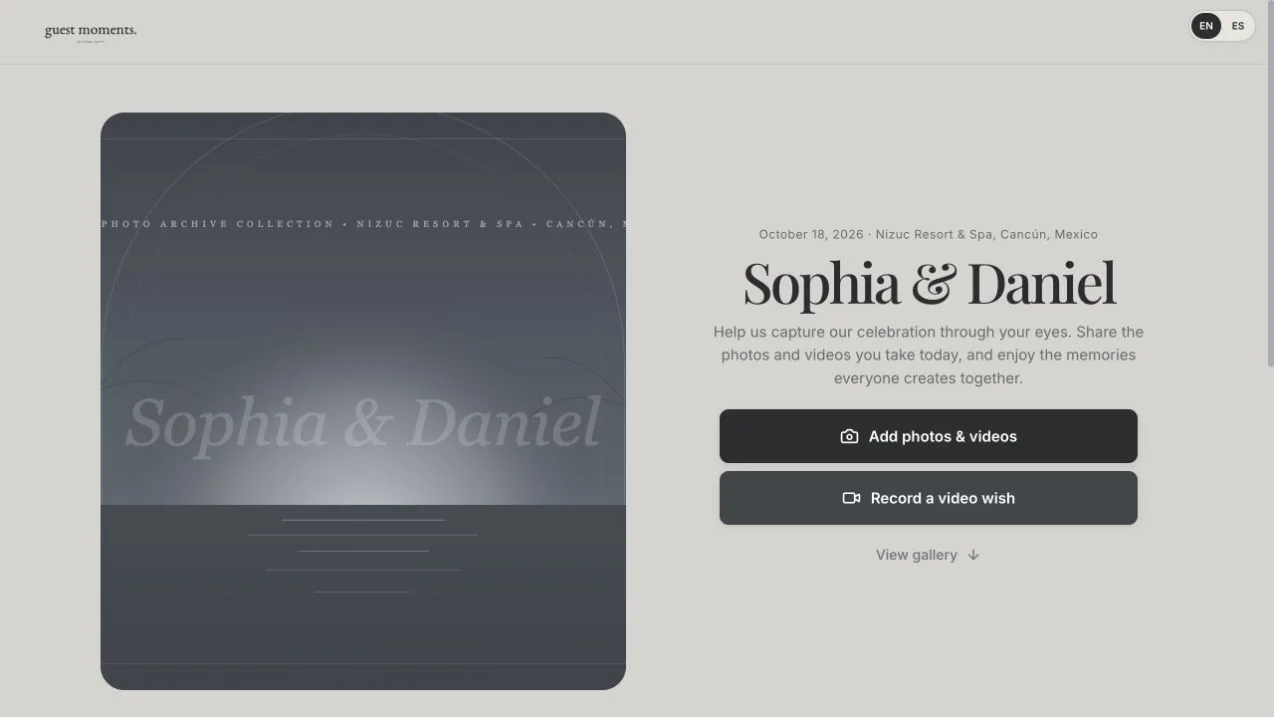
Copy the public guest link from your workspace or event settings. Share it in your guest information, or let people scan the printed QR card. A guest opens the event page with its title, welcome text and available upload or gallery controls. A password-protected event may ask for its event password first.
Never share an account password or a private couple-management link as the general invitation. A forwarded guest link can reach people beyond the original recipients, so choose access settings with that in mind. If the code opens the wrong event, stop distributing it and compare the destination with the event’s current guest link.
Ask one friend on a different phone to open the link before the event. This simple check can reveal a closed upload window, an unexpected password prompt or a printing mistake while there is still time to fix it.
10. Upload photographs from a phone
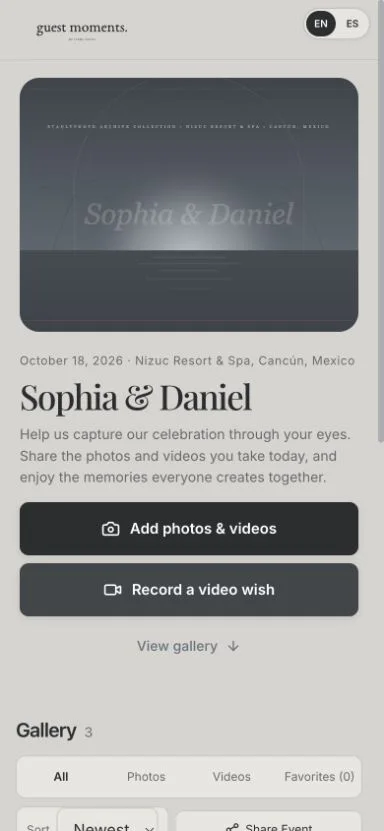
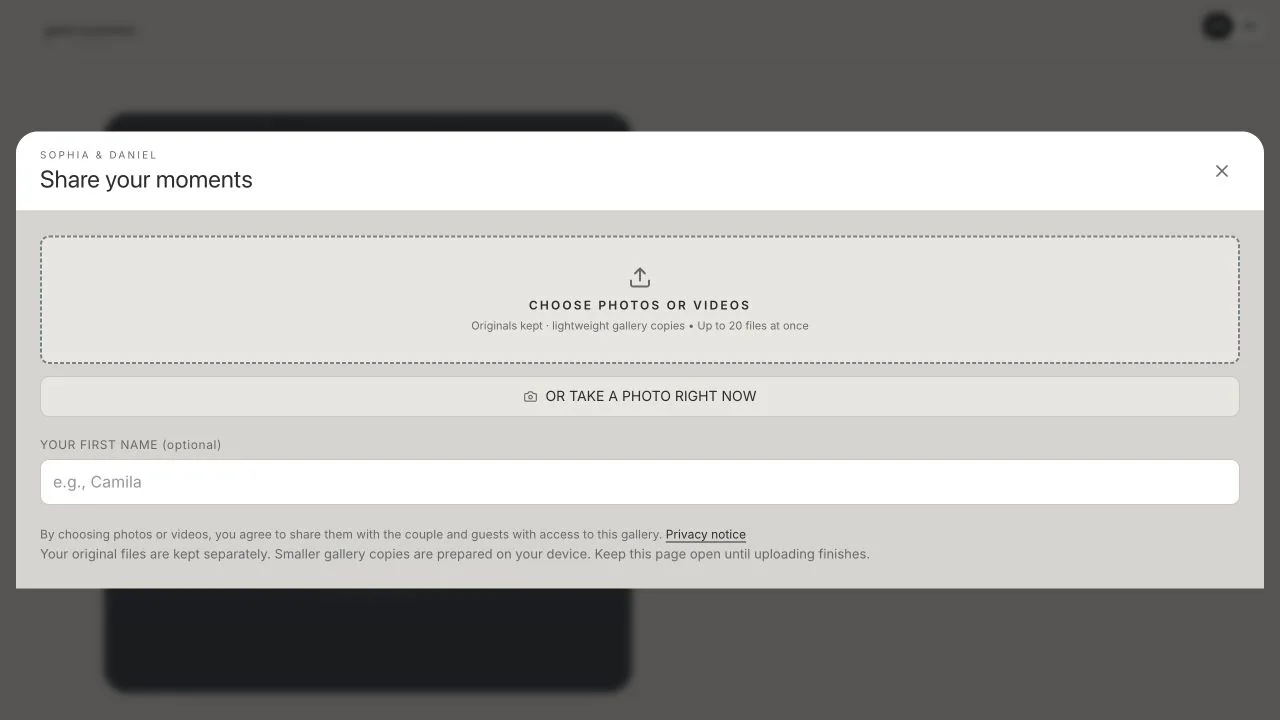
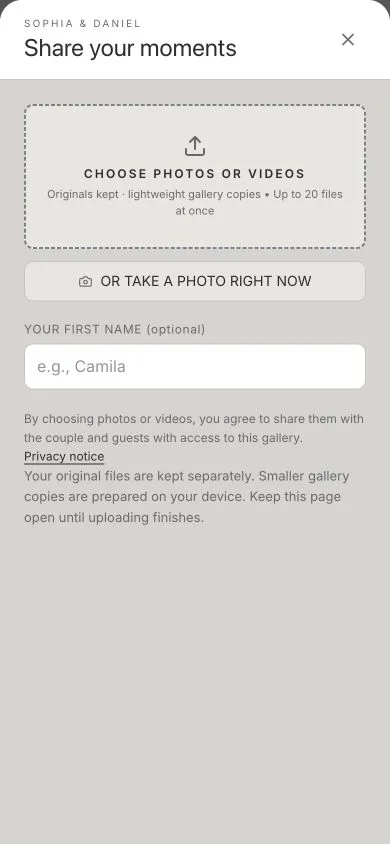
Guests select Add photos & videos, then Choose Photos or Videos. On their device they choose the files and confirm the system picker. Uploading begins automatically after selection; there is no separate upload-confirmation checkbox or second Upload Now step in this flow.
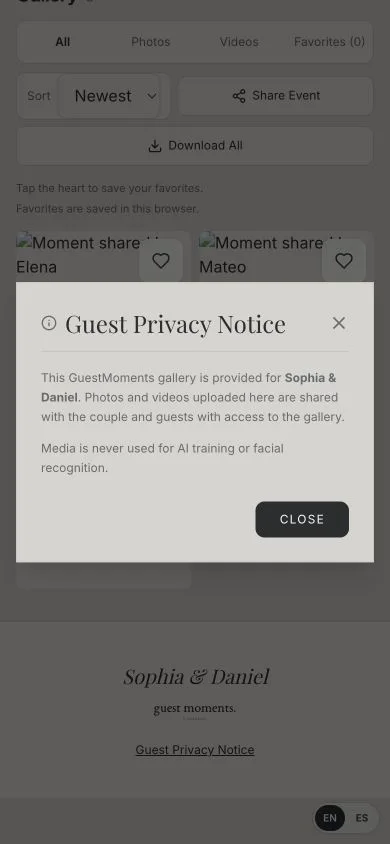
The first-name field is optional. Guests should read the short sharing notice and understand who can see contributions. Keep the page open while files transfer, especially with multiple photos or a weak connection. A local preview does not mean a transfer is finished; wait for the application’s result before closing the tab.
If a file is rejected, read the size or format message and try a supported file within the event’s limits. Avoid resubmitting the whole batch while another transfer is still running. Originals and gallery previews can look different because lighter viewing copies are used where supported.
11. Add a video or record a video wish
A saved video can be selected through Add photos & videos, subject to the event’s file-size and duration limits. Record a video wish opens the dedicated video-wish experience. Check the optional name and audience choice before recording; private wishes and public gallery contributions serve different audiences.
Allow camera and microphone access only when you intend to record. Follow the Start and Stop controls and the duration displayed by the current interface. The camera requests suitable recording settings, but a browser cannot guarantee identical resolution or frame rate on every phone. The actual recording result depends on device support and permissions.
The video uploads after recording. Keep the page open until it completes. If camera access fails, check browser permissions or use the available option to choose an existing video. A quiet spot and light facing the speaker usually matter more than an elaborate backdrop. See the video guestbook prompts for wording and practical recording advice.
12. Browse the gallery and individual moments
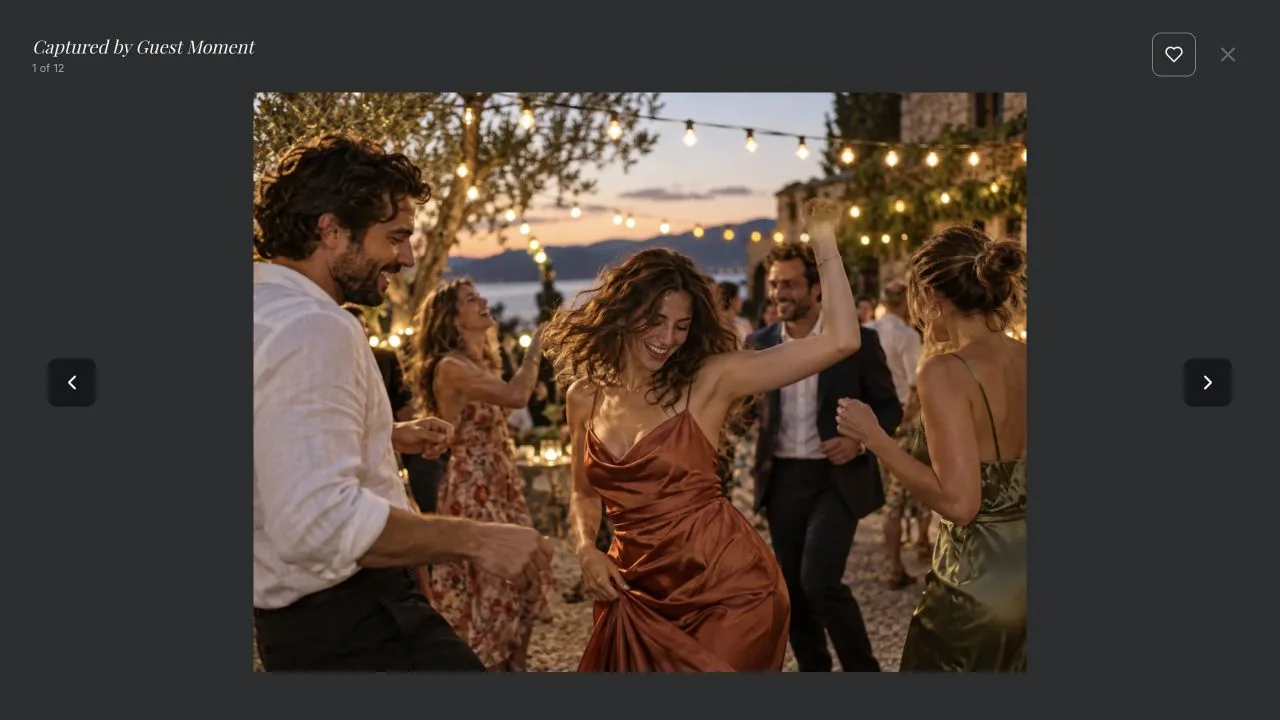
The shared gallery offers the available photo, video and favorite filters. Open a thumbnail to view an individual item, then use the viewer controls to move between moments. Favorites are stored in the current browser; they are not a guarantee of an account-wide collection across devices.
If a guest cannot see an upload, check whether approval is pending, the gallery is upload-only or the contribution is private. Reload once after a completed upload rather than assuming that an empty result means the original was lost. Video playback also depends on network conditions and whether the browser supports the file.
For troubleshooting, tell the organizer which event and file are involved. Avoid posting private gallery links or screenshots containing other guests’ details in public support conversations.
13. Review and manage contributions as the organizer
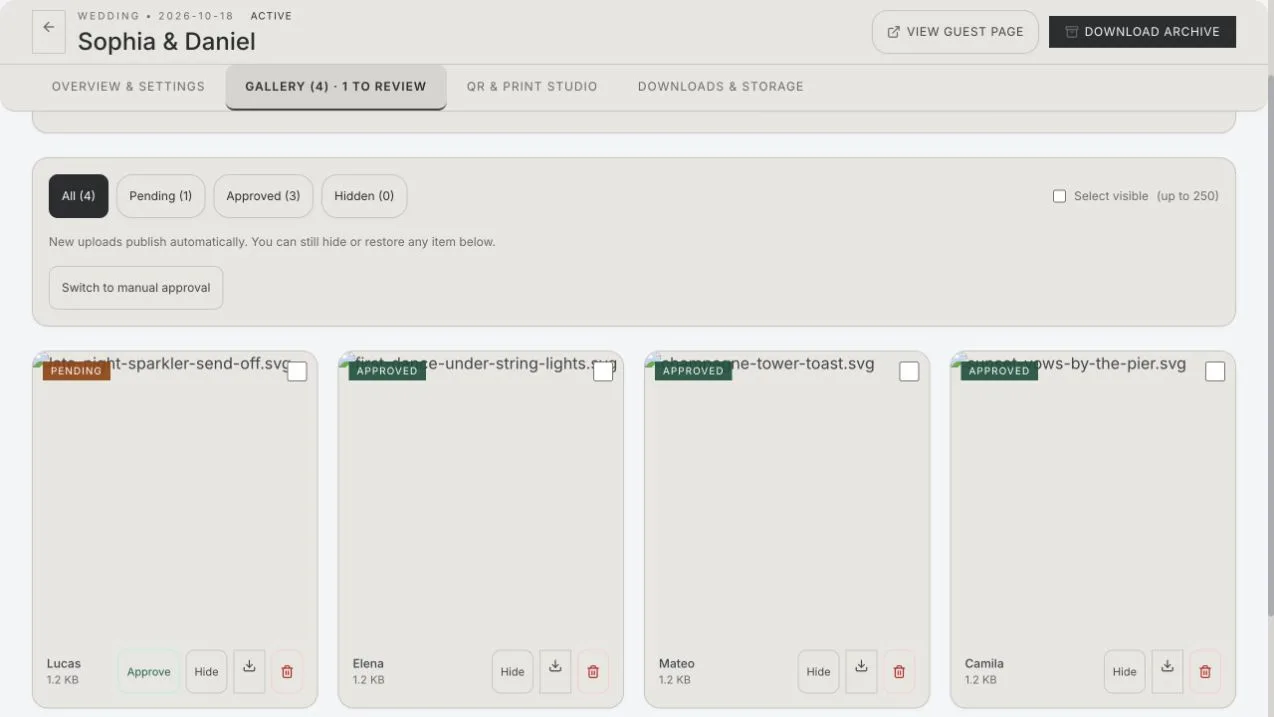
Open Manage and select Gallery. The organizer can review all, pending, approved and hidden items. Approval, hiding, restoration and deletion are different operations. Hiding an item removes it from the shared view without being the same as permanent deletion.
Use the selection controls when you need to act on several files. Check the selected count and filenames before confirming a destructive action. If you only want to keep a contribution out of public view while deciding, prefer the reversible visibility action that fits the current interface.
Do not change moderation solely because a guest is waiting unless you intend that policy to apply to the event. Explain that a message or photo has been received and will be reviewed. Owner controls remain separate from the guest gallery.
14. Download originals and keep a separate backup
Use the individual viewer’s save or download action for one item. On a phone, the operating system may show a share sheet or a media-saving option. A website cannot silently place files in every phone’s photo library, and the available choices differ between Safari, Android browsers and desktop browsers. Confirm where your device saved the file.
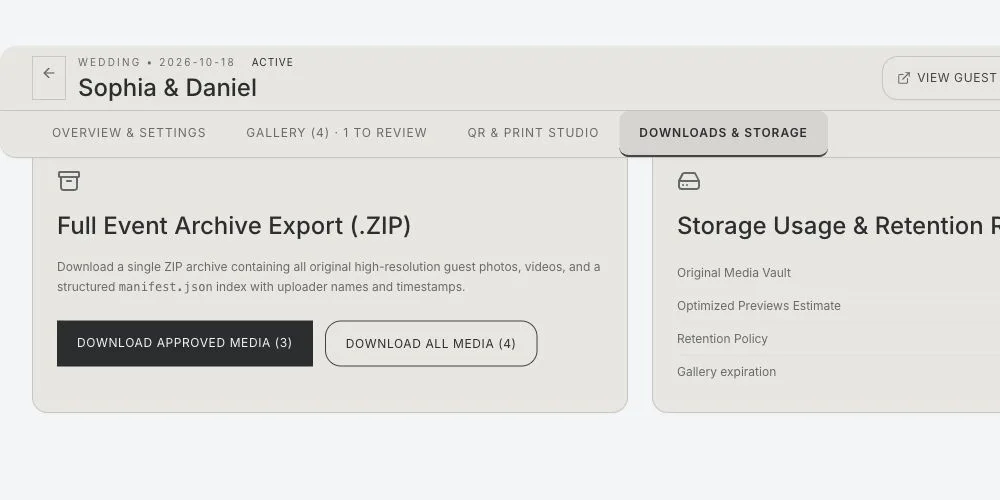
For the organizer’s complete collection, open Downloads & Storage and choose the archive option that matches approved media or all media. A ZIP archive is a file containing the collection; phones may save it to Files or Downloads. Extract it before expecting its individual photographs and videos to appear in a photo library.
Check the downloaded copy by opening several photos and videos, then save a second copy somewhere independent. Do this before expiry, not on the final evening when a large download or a slow connection could take longer than expected.
15. Understand expiry and reminder emails
The standard retention schedule is 90 days after the event date, interpreted at the end of that date in Cancún. Download reminders are scheduled around days 30, 60, 83 and 89 after the event. An owner-authorized extension or deletion hold can change an individual event’s effective deadline.
Old overdue galleries can receive a transition grace period when the automated policy is introduced. Deletion also waits for a final warning and a safety interval; this is not a promise of permanent storage or a reason to postpone your backup. Check the deadline shown for your event and keep your account email current.
Deleting active media does not mean every financial, security or support record disappears immediately. Those records have separate purposes described in the Privacy Policy. If an event date needs correcting, review the effective deadline afterward and contact support if it is unclear.
16. Run a guest test before printing every card
Use another phone or a separate browser session. Scan the final printed code, confirm the event name, upload one permitted test photo, wait for completion and check whether it appears according to your moderation settings. Try a short test video if you plan to invite video wishes.
Check downloads on the devices your guests are likely to use. Then remove your own test contribution using the organizer controls if you do not want it in the celebration gallery. Never use another customer’s event as a test space.
Keep instructions short at the venue. A code, a sentence explaining what to share and a friendly invitation usually communicate more clearly than a long technical explanation. If a guest prefers not to participate, let them enjoy the celebration without pressure.
17. Troubleshoot the most common obstacles
If a QR code does not scan, try the direct event link first. If the link works, inspect the print size, reflections, contrast and border. If the link also fails, check event access, payment status and the exact copied address. Reprinting a broken destination will not fix its settings.
If uploading fails, check connectivity, the file limit and whether uploads are open. If a video will not play, try a current browser and another connection before recording it again. If a save action opens a system menu, follow that device’s save workflow; a ZIP download is different from saving one photo.
If an email is missing, check spam and the account address. Support can investigate with an event name and a description of the failing step. Never send passwords, full card numbers or private management tokens.
18. Questions organizers ask before inviting guests
Do guests need an account? Not for the guest upload flow when access is permitted. Can I change the event name after printing? The event’s guest URL is designed to remain stable when details change; still test the final code after a significant settings change. Can everyone download? That depends on the event’s guest-download and access settings.
Why is my paid event still pending? A checkout return is not the same as confirmed payment. Refresh the workspace after confirmation, and contact support if the status remains incorrect. Does a gallery replace professional photography? No: it gathers guest perspectives alongside the photographer’s work.
What should I do first? Create a testable event, confirm access, try one upload and download, then print your cards. For a broader collection plan, read the wedding guest photo sharing guide. To choose between storage and messaging tools, see the event photo-sharing comparison.